

Building a survey in WordPress is easy, but designing one that gives you actionable data is a different story. Most surveys give useless results because they aren’t engaging enough to get honest, detailed answers from visitors.
I’ve found that the best way to fix this is by creating interactive surveys that adapt to your users in real-time. And by using AI to build your forms, you can skip the frustrating manual setup and focus on asking the right questions
In my experience, using interactive elements like conditional logic and conversational layouts can boost your completion rates. This makes sure you collect the hard data you need to grow your business instead of just polite feedback.
In this article, I will show you how to use WPForms and its AI features to create interactive surveys in WordPress. I’ll show you exactly how to set this up so you can start getting better insights from your audience today.

Quick Summary: Create smarter surveys using WPForms AI to generate questions and conditional logic to personalize the user experience. This guide shows you how to set up conversational layouts and visual reporting to boost engagement and collect actionable insights.
Here are the topics I will cover in this article:
Why Create Interactive Surveys in WordPress?
Creating interactive surveys in WordPress is one of the best ways to get honest feedback from your visitors.
Static forms can often feel long and boring, which causes many people to leave before they finish.
Interactive surveys solve this problem by adapting to your users in real-time.
This personal touch significantly improves your completion rates:
Better Engagement: Users are more likely to finish a form that feels personalized and conversational.
Higher Quality Data: You can use specialized fields like Likert Scales to get more accurate ratings than a simple ‘Yes’ or ‘No’.
Shorter Forms: By using conditional logic, you only show questions that are relevant to each specific user.
Professional Insights: Features like NPS allow you to track customer loyalty using the same standards as big brands.
Plus, interactive surveys help you make better decisions for your website. Instead of guessing what your audience wants, you have hard data to guide your next steps.
Best of all, using AI to generate these forms reduces your setup time from hours to roughly 15 minutes. It allows you to focus on the goal of your data rather than the mechanics of the builder.
What You Need to Get Started (Free vs. Pro)
WPForms is the best drag-and-drop form builder for WordPress. It helps you create interactive surveys using AI, conditional logic, and conversational layouts to increase completion rates and gather actionable data.
You can start building your first WordPress survey using the free version of WPForms. However, if you want to create truly interactive surveys with visual data reports, you will need WPForms Pro.
While the free plugin allows you to use the AI form builder, the specialized survey fields, reporting tools, and the ‘Conversational Forms‘ addon are all premium features that require WPForms Pro. This addon makes your surveys feel more like a one-on-one chat.
To get started, you will first need to install and activate the WPForms plugin. If you need help, you can see our guide on how to install a WordPress plugin.
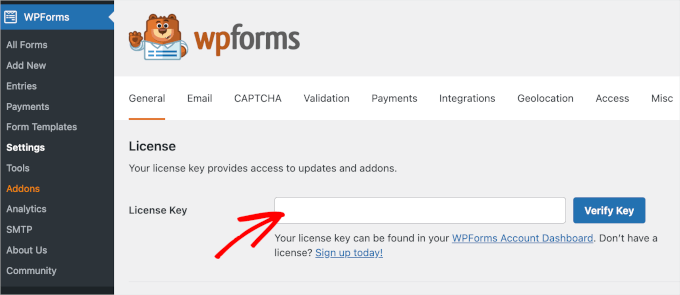
Once the plugin is active, you must verify your license. You can do this by going to WPForms » Settings and entering your license key to unlock the Pro features.
Next, you’ll need to install the survey tools.
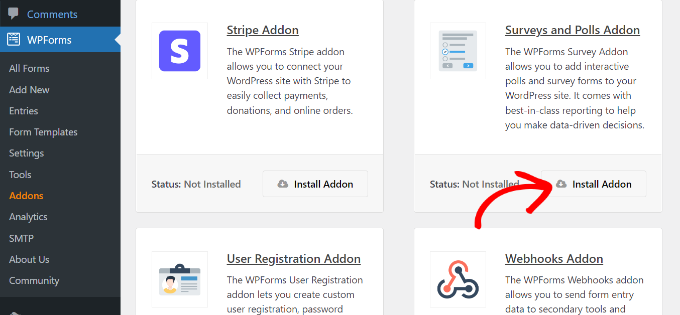
You can do this manually by navigating to WPForms » Addons to find and install the ‘Surveys and Polls’ addon.
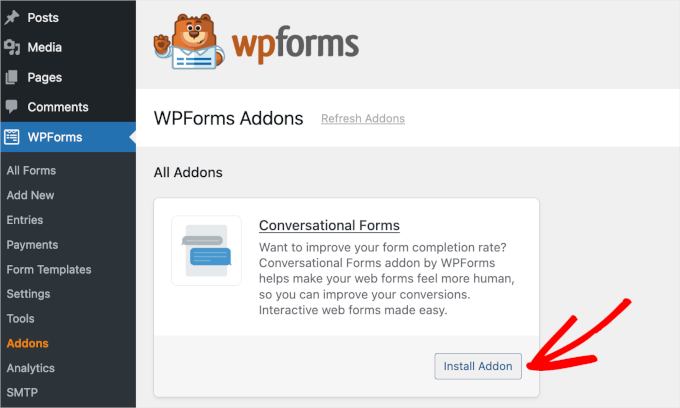
While you are there, I also highly recommend finding the ‘Conversational Forms‘ addon and clicking ‘Install Addon’.
This is the specific tool that will allow you to turn your standard survey into a full-screen, interactive layout.
Once these steps are complete, your website is ready to handle smart, interactive surveys. You can now start building your first form using AI.
Expert Tip: When you start collecting survey data from users, you should update your Privacy Policy page. It is important to let your visitors know exactly how you use their information to stay compliant with privacy laws like GDPR.
Using AI to Build an Interactive Survey Prompt
Now that you have the right tools installed, you are ready to start building your first survey. To begin, navigate to WPForms » Add New Form in your WordPress dashboard.
You will see the form builder screen with several template options. Instead of choosing a pre-made template, click the ‘Generate With AI’ button to open the AI assistant.
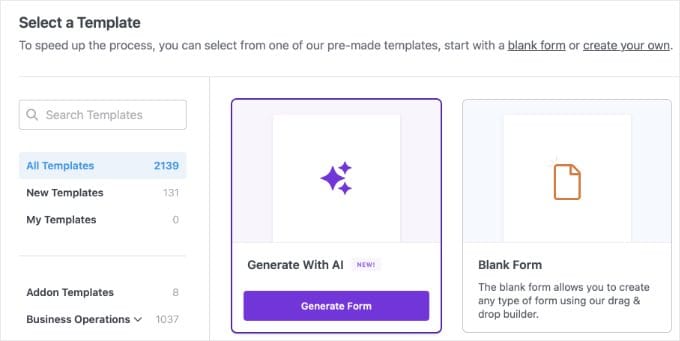
This is where you can use a creative prompt to describe exactly what you want. I’ve found that asking the AI to include specific interactive fields, like a Likert Scale or an NPS field, gives you a much more professional result.
For this example, you can enter a prompt like:
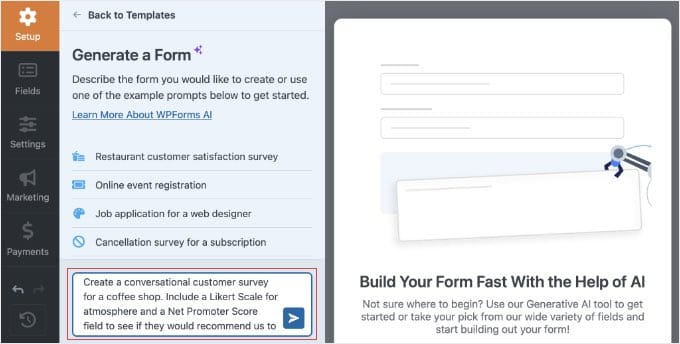
The AI will then process your request and build a draft of the form for you.
It will automatically select the best field types and even set up the standard 0-10 rating for your loyalty questions.
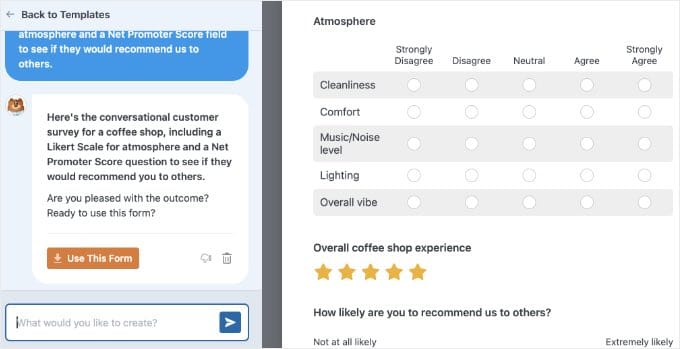
After the AI finishes, you will see a preview of your new survey. If you want to make changes, you can use the chat prompt to ask the AI to adjust it.
For example, you can ask it to ‘add a newsletter optin checkbox’ or even ‘translate this entire form into Spanish.’
Note: AI refinements only work during this active preview session. Once you leave this screen, the chat session closes.
Once you are happy with the preview, simply click the ‘Use This Form’ button. This will open the regular WPForms drag-and-drop builder.
From here, we always recommend double-checking the fields to make sure the questions fit your brand voice and the rating scales are configured exactly how you want them.
Adding Smart Logic for a Personalized Experience
Once your fields are in place, you can make your survey interactive by using conditional logic. This is a powerful feature that allows you to show or hide certain questions based on a visitor’s previous answers.
This is the best way to keep your forms short and relevant. Instead of asking every customer the same questions, you can choose to only show a feedback box to someone who gave a low star rating.
To set this up, you’ll first need to select a field in the form builder. For our example, I will click on the ‘Please explain your low rating’ text field.
Note: If the AI didn’t create this exact field for you, simply drag a ‘Paragraph Text’ field from the left menu onto your form, click on it, and change the label.
Next, look at the left-hand panel under ‘Field Options’ and click on the ‘Smart Logic’ tab. You will see a toggle to ‘Enable Conditional Logic’ that you can click to turn on.
Now you can create a simple rule to control when this field appears. For instance, you can tell the plugin to show this box only if a specific rating is less than 3 stars. This could be a rating like ‘Coffee Quality’ from the earlier AI prompt.
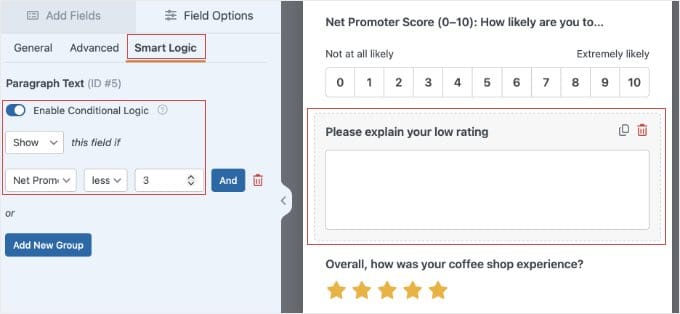
This small change makes sure your survey feels personalized and interactive for every visitor. It prevents people from feeling overwhelmed by questions that don’t apply to their experience.
Pro Tip: You can actually ask the AI to set up your conditional logic for you during the creation step. For example, try adding ‘only show the feedback box if the rating is 2 stars or less’ to your initial prompt.
While this is a great time-saver, I still highly recommend checking the ‘Smart Logic’ tab manually using the steps below to make sure the rules are exactly how you want them.
You can repeat this process for any other fields you want to hide. It helps you build a smarter survey that only collects the most important data from your audience.
Before moving on, it is a good idea to click the ‘Preview’ button at the top of the builder to test your logic and make sure the hidden fields appear correctly.
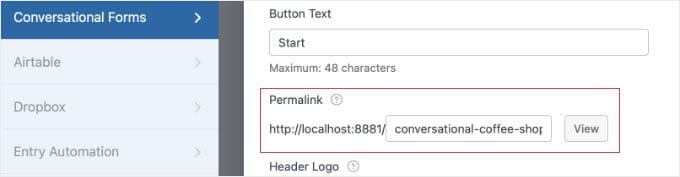
Finally, to give your survey that true one-on-one chat feel, go to Settings » Conversational Forms in the form builder and check the box to ‘Enable Conversational Form Mode’.
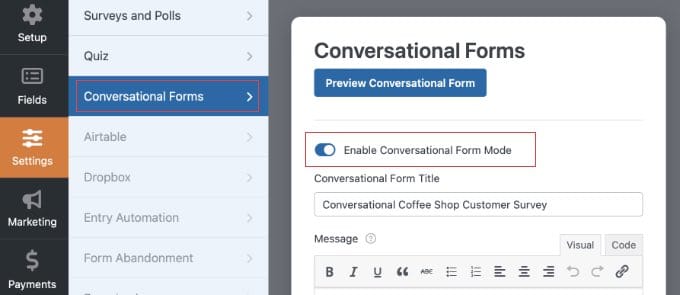
This will convert your survey into a distraction-free, interactive page. From here, you can customize your page colors, add a custom logo, and even add a percentage-based progress bar.
Most importantly, you will see a ‘Permalink’ field. This is where you can create a clean, custom URL for your survey (like yoursite.com/feedback). Be sure to copy this link to your clipboard so you can share it with your visitors later.
Expert Tip: I recommend performing a ‘Thumb Test’ on your conversational survey. These layouts use full-screen interaction. So, you should open the live preview on your phone to make sure the buttons and text are easy to tap and read on a small screen.
For a complete walkthrough of these design settings, check out our dedicated guide on how to create conversational forms in WordPress.
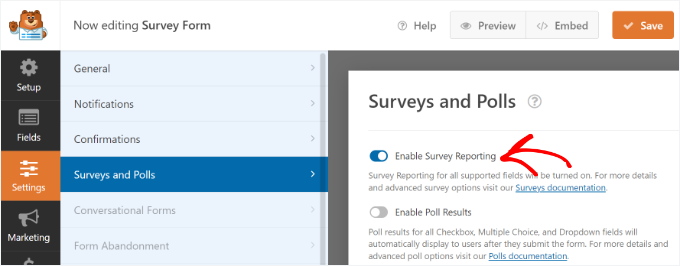
Before you publish your form and start collecting data, you need to make sure that survey reporting is enabled. While the AI builder often turns this on for you automatically, it is always a good idea to double-check.
In the form builder, simply go to Settings » Surveys and Polls. From here, make sure the box next to the ‘Enable Survey Reporting’ option is checked, and then click ‘Save’.
Publishing Your Interactive Survey
Once you are happy with your questions and smart logic, it is time to make your survey live.
Don’t forget to click the ‘Save’ button at the top of the form builder before exiting.

Option 1: Share Your Conversational Survey Link (Recommended)
If you followed my recommendation to enable Conversational Forms mode, your survey is automatically published to the dedicated, full-screen permalink you created earlier.
Because this is a standalone landing page, it will not automatically appear in your website menu. To get people to take your survey, you will need to manually share that link.
You can paste it into your email newsletter, share it on your social media accounts, or link to it from a ‘Take Our Survey’ button on your homepage.
Option 2: Embed the Survey on an Existing Page
Alternatively, you might want to place your survey directly inside an existing blog post or contact page. If you choose this method, the survey will use a standard inline layout instead of the full-screen conversational mode.
To do this, simply open the post or page where you want the survey to appear.
Then click the ‘+’ add block button and search for ‘WPForms’. Add the block to your page, and select your new AI survey from the dropdown menu.
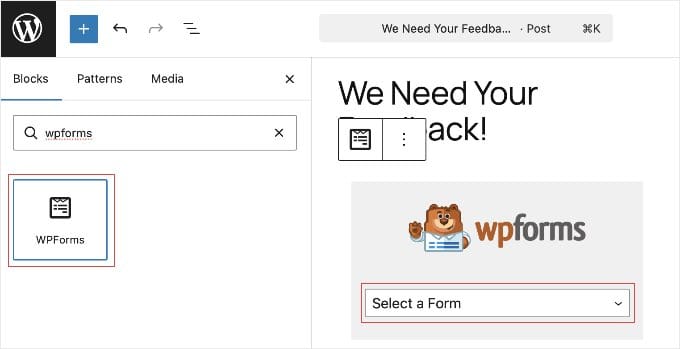
Once you hit ‘Publish’ or ‘Update’ on your page, your inline interactive survey will be live.
Related: You can learn how to change the colors, styling, or manually adding different field types to your form in our comprehensive guide on how to create a survey in WordPress.
Analyzing Your Data with Interactive Reports
After your survey has been live for a while, you will want to see the results.
To do this, go to WPForms » All Forms in your WordPress dashboard and hover your mouse over your survey.
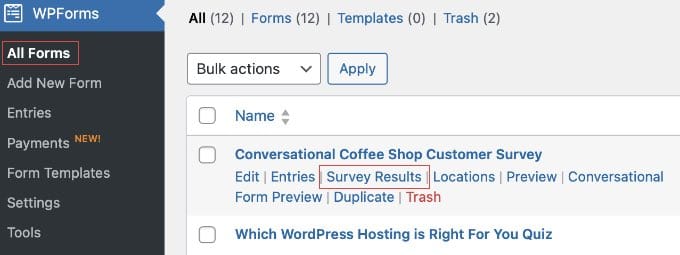
You will see a link for ‘Survey Results’ that you can click to open a new screen.
This is where the plugin turns your raw data into interactive charts and graphs.
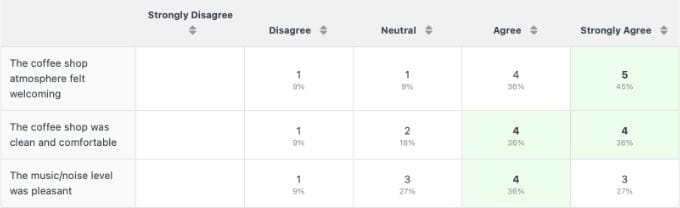
Instead of looking at a long list of text, you can see your feedback in colorful pie charts or bar graphs. This makes it much easier to spot trends in your customer behavior at a glance.
If you want to change how a specific chart looks, you can simply click the chart icons at the top of each individual graph.
You can quickly switch between different styles, like pie charts or bar graphs. This helps you find the one that is easiest for you to read.
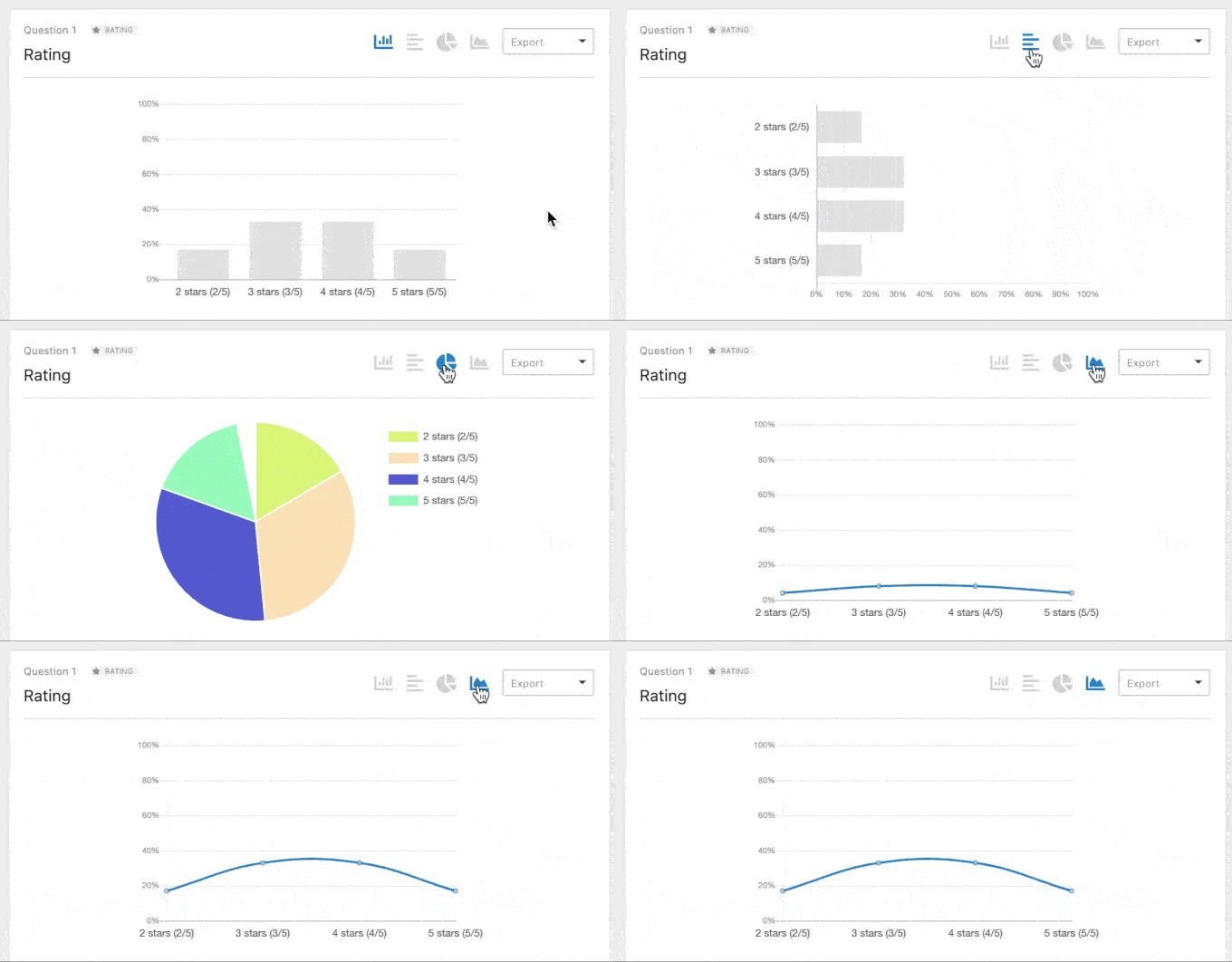
One of the best things about this feature is that it works on your past data. This means if you had a form running before you installed the survey tools, the plugin can still generate interactive reports for those older entries.
You can also share these results with your team or clients. There is an ‘Export’ button that allows you to save individual charts as PDF files or images for your reports.
Bonus: How to Reduce Form Abandonment
If you want to get even better results from your interactive surveys, I recommend tracking where your visitors stop filling out your forms. This helps you identify which questions might be too difficult or confusing for your audience.
If you are interested in improving your completion rates, you can see our guide on how to track and reduce form abandonment in WordPress. This will show you exactly how to capture partial entries so you never lose valuable feedback again.
Frequently Asked Questions About WordPress Surveys
I have helped many readers set up their first WordPress surveys. I often hear similar questions about the best way to handle data and interactive features. Here are some of the most common questions about using AI and WPForms to collect feedback on your website.
Can I create an interactive survey for free?
You can create a basic survey with the free version of WPForms, but you will need a Pro license to access the interactive reporting and advanced smart logic features.
While the free AI builder can help you structure your questions, the specialized visual charts and ‘Conversational Forms‘ are part of the premium addon.
Are my visitors’ survey answers shared with the AI?
No, your visitors’ answers are never seen or collected by the AI. The WPForms AI tool is only active in the backend to help you design the form’s layout and questions.
Once your survey is live, all user responses are collected normally and safely stored directly in your own WordPress database.
Can I add images to my survey choices?
Yes, you can add images to your survey choices to make them more interactive and visual for your visitors. When you are editing a multiple-choice field, you can simply toggle on the ‘Use Image Choices’ option to upload your own photos for each answer.
How do I show real-time results to my users?
You can show real-time results to your users by turning your survey into a poll. By enabling the ‘Poll Results’ feature in your form settings, visitors will see an interactive chart showing how other people have voted as soon as they submit their answer.
Is there a limit to how many responses I can get?
No, there is no limit to the number of survey responses you can collect when using WPForms on your website. Unlike many other third-party survey platforms, you own your data and can collect as many entries as your web hosting server can handle.
Additional Resources for Improving Your Surveys
I hope this article helped you learn how to use AI to create interactive surveys.
Once you have your interactive survey running, you may want to explore more ways to use that data to grow your website:
If you liked this article, then please subscribe to our YouTube Channel for WordPress video tutorials. You can also find us on Twitter and Facebook.